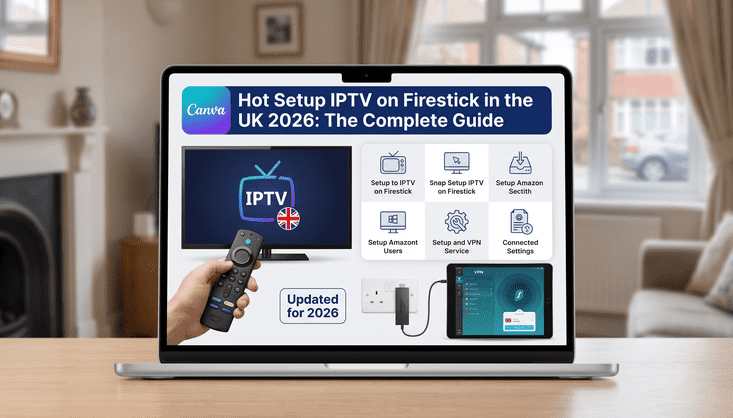
Setting Up IPTV on Your Firestick in the UK: Everything You Need to Know
So you've got an Amazon Firestick sitting there and you're thinking about getting IPTV set up on it. Good choice. The Firestick is honestly one of the best devices you can use for IPTV in the UK. It's cheap, it's small, it plugs straight into your TV, and once it's set up properly it just works. No fuss, no complicated menus, no tech degree required.
This guide walks you through the whole process from start to finish. Even if you've never done anything like this before, you'll be watching live TV within about 15 minutes.
What You Need Before You Start
Before you touch any settings, make sure you have three things ready. First, your Firestick needs to be plugged in and connected to your home WiFi. Second, you need an active IPTV subscription with a provider that gives you either an M3U URL or an Xtream Codes login. Third, your internet connection should be at least 25 Mbps for a smooth HD experience. If you're planning on 4K streams, aim for 50 Mbps or more.
That's genuinely it. You don't need any special cables, adapters or extra hardware. Just the Firestick, your WiFi and your IPTV login details.
Step One: Allow Apps from Unknown Sources
By default, Amazon locks the Firestick down so it only installs apps from its own store. Since IPTV apps like IPTV Smarters Pro and TiviMate aren't always listed there, you need to unlock this first. It sounds more technical than it is.
Go to your Firestick home screen and click Settings in the top menu. Then go to My Fire TV, then Developer Options. You'll see an option called Apps from Unknown Sources. Turn that on. Amazon will show you a warning message, just click Turn On to confirm. That's it, step one done.
Step Two: Download the Downloader App
The Downloader app is a free tool that lets you install apps that aren't in the Amazon store. Search for it directly in the Amazon search bar on your Firestick, it should come up straight away. Install it and open it once it's downloaded.
When you open Downloader you'll see a URL bar. This is where you'll type the address to download your IPTV app. Keep it open and move to the next step.
Step Three: Choose Your IPTV App
There are a few good options here but the two most popular ones for UK users are IPTV Smarters Pro and TiviMate. Both work well with most providers including LuxStreams.
IPTV Smarters Pro is the more beginner friendly option. It has a clean interface, supports M3U links and Xtream Codes, and it's free to download. TiviMate is slightly more advanced but a lot of people prefer it once they've used it a couple of times because the layout feels more like a traditional TV guide.
For this guide we'll use IPTV Smarters Pro since it's the easiest starting point.
Step Four: Install IPTV Smarters Pro
In the Downloader app URL bar, type the following address to download IPTV Smarters Pro. You can find the official APK download link from the IPTV Smarters website. Once you type in the URL and hit Go, the file will start downloading. When it finishes, click Install and then Open.
The whole download and install process takes about two minutes depending on your connection speed. Once it opens you're ready for the fun part.
Step Five: Add Your IPTV Subscription
When IPTV Smarters Pro opens for the first time it'll ask you how you want to add your playlist. You'll see a few options. If your provider gave you an M3U URL, select Add URL. If they gave you a username, password and portal URL, select Xtream Codes API instead.
Type in your details carefully. One wrong character and it won't connect, so double check everything before hitting confirm. Once it's in, the app will load your channel list. Depending on how many channels your subscription includes this can take anywhere from 10 seconds to a couple of minutes.
And that's it. You're in. Your full channel list will appear and you can start browsing.
What the Channel Guide Looks Like
Once you're set up, IPTV Smarters Pro organises your channels into categories. Live TV, Movies, Series and so on. UK users on LuxStreams will find all the major channels right at the top. BBC One, BBC Two, ITV, Channel 4, Channel 5, Sky Sports, BT Sport and plenty more.
The EPG, which is the electronic programme guide, loads automatically and shows you what's on now and what's coming up. It works just like the guide you'd see on a regular Sky or Freeview box. Very familiar, very easy to navigate.
Getting the Best Picture Quality
Most IPTV apps let you switch between stream quality options if your provider offers multiple. If you notice buffering during peak hours, try switching from HD to a slightly lower quality temporarily. It usually sorts the problem out straight away.
Also make sure your Firestick is connected via WiFi on the 5GHz band if your router supports it. The 5GHz band is faster and less congested than 2.4GHz, which makes a real difference for live streaming. If your router is far away and WiFi signal is weak, a cheap powerline adapter or a WiFi extender can solve that instantly.
Common Problems and How to Fix Them
The most common issue people run into is buffering. Nine times out of ten this comes down to internet speed or the WiFi signal to the Firestick. Run a speed test on your Firestick using the Internet Speed Test app from the Amazon store. If you're getting less than 20 Mbps, that's your problem right there.
If channels aren't loading at all, check that your subscription is still active and that you've entered your login details correctly. A simple typo in the M3U URL is responsible for more failed setups than anything else.
If specific channels are down but others work fine, it's usually a temporary issue on the provider's end. Give it an hour and try again. Good providers sort these things out quickly.
Why the Firestick Works So Well for IPTV
People often ask why the Firestick is so popular for IPTV compared to other devices. The honest answer is that it hits a sweet spot of price, ease of use and performance. You can pick one up for under 30 pounds, it runs Android under the hood so it handles IPTV apps brilliantly, and the remote is simple enough that anyone in the house can use it.
Compare that to setting up IPTV on a smart TV, which often requires sideloading apps through a USB stick and navigating menus that weren't designed for it, and the Firestick wins every time for simplicity.
Is a VPN Worth Using
Some people choose to use a VPN alongside their IPTV setup for privacy reasons. A VPN encrypts your internet traffic so your ISP can't see what you're streaming. Whether you need one depends on your own situation and how much you care about that level of privacy.
If you do use a VPN, make sure it's a fast one. Slow VPNs will introduce lag and buffering that has nothing to do with your IPTV provider. ExpressVPN and NordVPN both work well on Firestick without noticeably affecting stream quality.
Ready to Get Started
Setting up IPTV on a Firestick really is as straightforward as this guide makes it sound. Once you've done it once, you'll wonder why you didn't do it sooner. The hardest part is usually just finding a reliable provider you can trust, and that part is already sorted.
If you haven't sorted your subscription yet, take a look at the LuxStreams packages here and pick the one that suits you. Everything else takes about 15 minutes from there.
And if you ever get stuck at any point in the setup, the LuxStreams support team is always on hand to walk you through it. No judgment, no complicated instructions, just straight help when you need it.