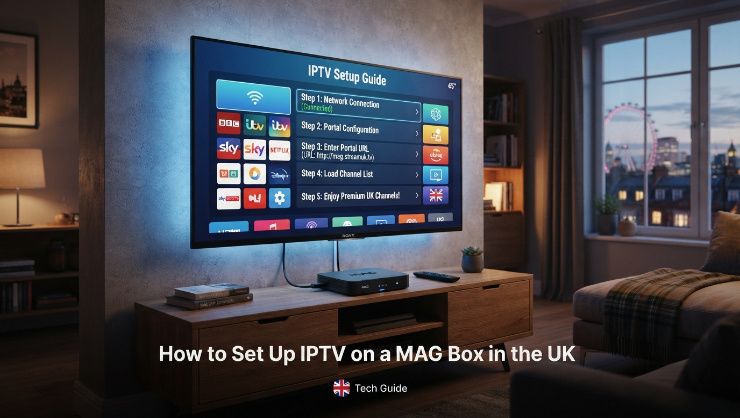
MAG boxes have been a popular choice for IPTV viewing in the UK for years, largely because they are purpose built for exactly this use case rather than being a general purpose streaming device that happens to support IPTV apps. If you have a MAG box sitting in a drawer or have just received one from your provider, getting it properly set up takes less than fifteen minutes once you understand what the device needs and where to enter your subscription details.
What a MAG Box Actually Is
A MAG box is a set-top box manufactured specifically for IPTV use. Unlike a Firestick or Android TV box, which run general purpose operating systems and support dozens of different apps, a MAG box runs a stripped-back Linux-based system designed almost entirely around IPTV functionality. This focus makes it reliable and simple to operate for IPTV specifically, though it also means it cannot run additional apps like Netflix or BBC iPlayer natively in the way that a Firestick can.
MAG boxes connect to your television via HDMI and to your network either through a wired ethernet connection or WiFi depending on the model. The interface is straightforward, a portal screen that loads your channel list once the device knows where to find your subscription details.
What You Need Before You Start
You need three things before setting up your MAG box. First, the box itself connected to your TV and powered on. Second, an active internet connection, preferably via ethernet cable for the most stable IPTV experience. Third, your IPTV portal URL from your provider. This is different from the M3U link or Xtream Codes credentials used by apps like TiviMate or IPTV Smarters. MAG boxes use a portal URL specifically, so confirm with your provider that they supply a MAG compatible portal address alongside their standard credentials.
If you do not have a UK IPTV subscription yet, start a free trial with LuxStreams here and request your MAG portal URL when you set up the trial. LuxStreams supports MAG box setups alongside the standard app-based methods.
Step One: Access the MAG Box Settings
Power on your MAG box and wait for it to load to the main portal screen or the initial setup screen. Using the remote that came with the box, navigate to the settings menu. On most MAG models this is accessible through the remote's menu button or by navigating to a settings icon on the main screen. The exact layout varies slightly between MAG 250, 254, 256, 322, and newer models, but the settings area is consistently accessible from the main screen on all of them.
Step Two: Enter Your Portal URL
Inside the settings menu, look for a section labelled Servers or STB Configuration depending on your specific MAG model. Within this section you will find a field for Portal URL or Portal 1. This is where you enter the portal address your IPTV provider has given you. Enter it exactly as provided, including the full address with all characters. Even a small error in this URL will prevent the box from connecting to your subscription.
Some MAG models allow you to enter a second portal URL as a backup, which is worth using if your provider supplies an alternative portal address. Having a backup means that if the primary portal experiences any downtime your box can automatically try the secondary address without needing manual intervention.
Step Three: Save and Reboot
Once you have entered the portal URL, save the settings and reboot the MAG box. Most models have a save option within the settings menu followed by a reboot option, or will prompt you to reboot automatically after saving. The reboot takes between thirty seconds and two minutes depending on the model.
When the box restarts it will attempt to connect to the portal URL you entered and load your channel list. If the URL is correct and your subscription is active, the main channel guide will appear within a minute of the reboot completing. If the box shows an error or fails to load the portal, double-check the URL for any typos before contacting your provider.
Step Four: Navigate Your Channel List
Once your channel list has loaded, the MAG box interface organises channels into categories which you navigate using the remote. Most providers deliver channels grouped by genre, sports, news, entertainment, and so on, making it straightforward to find what you are looking for without scrolling through the entire list.
The EPG, or electronic programme guide, should load alongside your channels if your provider's portal includes guide data. This shows what is currently broadcasting on each channel and what is coming up, displayed in the standard TV guide format. If EPG data does not load automatically, check your provider's setup documentation for any additional EPG configuration steps specific to MAG boxes.
Getting the Best Performance From Your MAG Box
Connecting your MAG box via ethernet rather than WiFi makes a noticeable difference to stream stability, particularly during high demand periods like live Premier League matches when your provider's servers are handling significant simultaneous load. If running a cable from your router to the MAG box is not practical, positioning your router as close as possible to the MAG box and using the 5GHz WiFi band rather than 2.4GHz where the model supports it gives you the best wireless performance available.
Clearing the MAG box cache periodically also helps maintain performance over time. On most models this is accessible through the settings menu under system or maintenance options. A cache clear every few weeks keeps the interface running smoothly without accumulating the kind of temporary file buildup that can slow older MAG models down over extended use.
Common MAG Box Problems and How to Fix Them
If channels load but streams buffer or freeze during live broadcasts, this is almost always a provider infrastructure issue rather than anything specific to the MAG box setup. Test the same channel at a quieter time of day to confirm whether the buffering is consistent or only appears during high demand periods, since the two situations point to different underlying causes.
If the portal fails to load at all after a correct URL entry, check that your internet connection is active and that the MAG box is receiving a proper network signal. A simple router restart alongside the MAG box restart resolves most connection failures that aren't caused by an incorrect portal URL.
If channels were working previously but have stopped appearing, your subscription may have expired or your provider may have updated their portal URL. Contact your provider directly to confirm both the subscription status and whether the portal address you are using remains current.
How LuxStreams Supports MAG Box Users in the UK
LuxStreams provides full MAG box support including portal URLs configured specifically for MAG device compatibility. The server infrastructure is built to maintain stable streams during UK peak viewing periods, including live Premier League and EFL coverage, which is where MAG box users most commonly experience problems with providers whose infrastructure isn't adequately resourced for simultaneous demand.
WhatsApp support is available for setup assistance if you encounter any difficulty at any stage of the process above, with real-time responses rather than queued email replies. Try LuxStreams free here and request your MAG portal URL during the trial setup to test the full experience on your specific box model before committing to a subscription.
The Bottom Line
Setting up IPTV on a MAG box in the UK is a straightforward process once you have the correct portal URL from your provider and understand where to enter it within the device settings. The whole process from unboxing to a working channel list takes well under fifteen minutes in most cases, and the dedicated IPTV hardware gives you a clean, reliable viewing experience without the additional apps and interface complexity of a more general purpose streaming device. The most important variable remains the provider behind the subscription, since a well-configured MAG box connected to a poorly resourced provider delivers exactly the same frustrations as any other setup paired with an inadequate service.