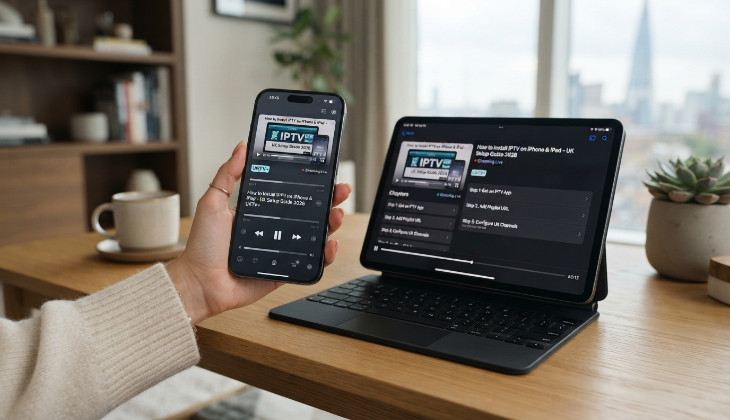
A lot of people assume IPTV is strictly a TV and Firestick thing, something you watch in the living room and nowhere else. That is not really true anymore. Plenty of UK viewers now watch just as much on an iPhone in the kitchen or an iPad propped up on the kitchen counter as they do on the main television, and honestly, once it is set up properly, it works just as well on iOS as it does on anything else. The process is slightly different from Android though, mostly because of how Apple handles apps, so it is worth walking through properly rather than assuming it is identical.
Why iOS Is a Bit Different
Apple runs a tighter ship when it comes to what gets onto the App Store compared to Android, which generally lets you install almost anything from almost anywhere. That means some IPTV player apps you might have heard of simply are not available through Apple's official store, and you will not find a direct APK style download either, since iOS does not work that way. The good news is there are still several genuinely solid, fully App Store approved IPTV players built specifically with iPhone and iPad in mind, so you are not missing out, you just need to know which ones to actually look for.
What You Need Before You Start
Before touching your phone, make sure you actually have your subscription details to hand. Most providers send these through by email shortly after you sign up, and it usually comes in one of two forms, either a direct M3U playlist link, or a username and password pair you will enter directly into the player app. Have whichever one of these you were given open and ready, since fumbling around looking for an email halfway through setup is the most common reason people give up partway through.
It is also worth having a decent Wi-Fi connection while you do the actual setup, since the app will need to download the full channel list the first time you log in, and that goes a lot smoother on Wi-Fi than on mobile data, particularly if your data allowance is tight.
Choosing an App for iPhone and iPad
The App Store has a handful of IPTV player apps that work reliably and support standard M3U playlists and login based subscriptions. Names like GSE Smart IPTV and IPTV Smarters Pro come up repeatedly because they are well maintained, genuinely free to download, and handle both playlist links and credential logins without fuss. You do not need to overthink this part. Pick one of the well known, well reviewed apps rather than something obscure with barely any reviews attached, since a flaky player app will make even a perfectly good IPTV subscription feel unreliable.
Search for your chosen app directly in the App Store, tap install the same way you would for any other app, and wait for it to finish downloading.
Setting Up Your Subscription in the App
Once the app has installed, open it and look for an option along the lines of add playlist, or add new user, the exact wording varies slightly between apps but the idea is the same. If you were given an M3U link, there will be a field specifically for pasting that in. If you were given a username and password instead, there will usually be separate fields for those, sometimes alongside a server address your provider will also have given you.
Enter everything exactly as it was sent to you, paying close attention to capital letters and any unusual characters, since a single typo here is genuinely the most common reason people end up with a blank channel list and assume something is broken. Once everything is in correctly, confirm or save, and the app should start pulling down your channel list.
This first load can take a minute or two depending on how large your channel package is, so give it a moment rather than assuming it has frozen. If you want the exact walkthrough with screenshots for this part specifically, our full setup guide covers it step by step for every device we support, iPhone and iPad included.
Getting Familiar With the Interface
Once your channels have loaded, take a minute to actually look around the app rather than diving straight into watching something. Most players let you browse by category, search directly for a channel by name, and mark favourites so you are not scrolling through hundreds of entries every time you want to find something you watch regularly. Setting up your favourites properly in the first ten minutes saves a genuine amount of hassle later, especially if your package includes a large number of channels.
It is also worth checking whether your chosen app includes an electronic programme guide, usually shortened to EPG, since this lets you browse what is actually on at a glance rather than guessing, similar to a normal television listing. Not every app enables this by default, so it is worth checking the settings menu if you do not see it straight away.
Watching on AirPlay and Apple TV
One thing worth knowing about if you have an Apple TV in the house as well, a lot of IPTV player apps on iOS support AirPlay, which lets you cast what you are watching on your phone or iPad straight onto your television screen. This is genuinely useful if you have started watching something on your iPad and want to move to the big screen without starting over, and it works the same way AirPlay works for anything else on iOS, just tap the AirPlay icon within the app and select your Apple TV from the list.
Not every IPTV app supports this equally well, so if casting to your TV is something you will use regularly, it is worth checking reviews for that specific feature before settling on an app, rather than assuming every player handles it the same.
Common Problems During iOS Setup
A few issues come up often enough that they are worth mentioning before you hit them yourself. If the channel list will not load at all after entering your details, double check for typos first, since this really is the most common cause by a wide margin. If the app installed fine but crashes immediately on opening, check you are running a reasonably current version of iOS, since very old versions sometimes struggle with newer app updates.
If specific channels will not play while others work fine, this is sometimes a temporary issue on the provider's side rather than anything wrong with your setup, and it is worth trying again after a few minutes before assuming you have done something incorrectly.
If buffering is the issue rather than a complete failure to load, that generally points toward your Wi-Fi signal rather than the app itself, and switching from mobile data to Wi-Fi, or moving closer to your router, often clears it up immediately.
Streaming on Mobile Data Versus Wi-Fi
It is worth being aware that streaming IPTV over mobile data will chew through a data allowance considerably faster than most other apps you use day to day, particularly if you are watching in HD. If you are planning to watch regularly while out and about rather than just occasionally, it is worth keeping an eye on your data usage in the first week or two to get a feel for how much a typical viewing session actually costs you against your plan's limit.
For most people, IPTV on iPhone and iPad works best as a Wi-Fi primary activity, with mobile data kept for the odd occasion rather than relied on as the main way you watch.
Keeping Everything Running Smoothly Long Term
Once everything is set up and working, there is not much ongoing maintenance needed, but a couple of small habits help keep things running well. Keep your chosen player app updated through the App Store, since updates often fix small bugs and occasionally improve streaming performance. If you ever notice performance dipping over time, closing the app fully and reopening it, rather than just leaving it running in the background indefinitely, tends to clear up minor slowdowns.
If you ever switch to a new iPhone or iPad, remember your subscription details, M3U link or login, are what carry your access across, not anything tied specifically to the old device, so setting up on a new phone is simply a case of repeating the same process with the same details.
Checking Device Compatibility Before You Commit
If you are still deciding whether to subscribe at all and want a clear picture of exactly what is supported across iPhone, iPad, and everything else before paying for anything, our IPTV app page lays out device compatibility plainly, rather than making you dig through a generic FAQ to find the answer.
Final Thoughts
Installing IPTV on an iPhone or iPad is genuinely straightforward once you know which apps to look for and have your subscription details ready, even if the process looks slightly different from the Firestick or Android route most guides focus on. Pick a well reviewed player app from the App Store, enter your details carefully, take a few minutes to set up your favourites and check for an EPG, and you will have a smooth, portable viewing setup that works just as well in bed or on the train as it does propped up on the kitchen counter. If anything does not behave as expected along the way, UK IPTV has further guidance and support details to help you get sorted quickly.